
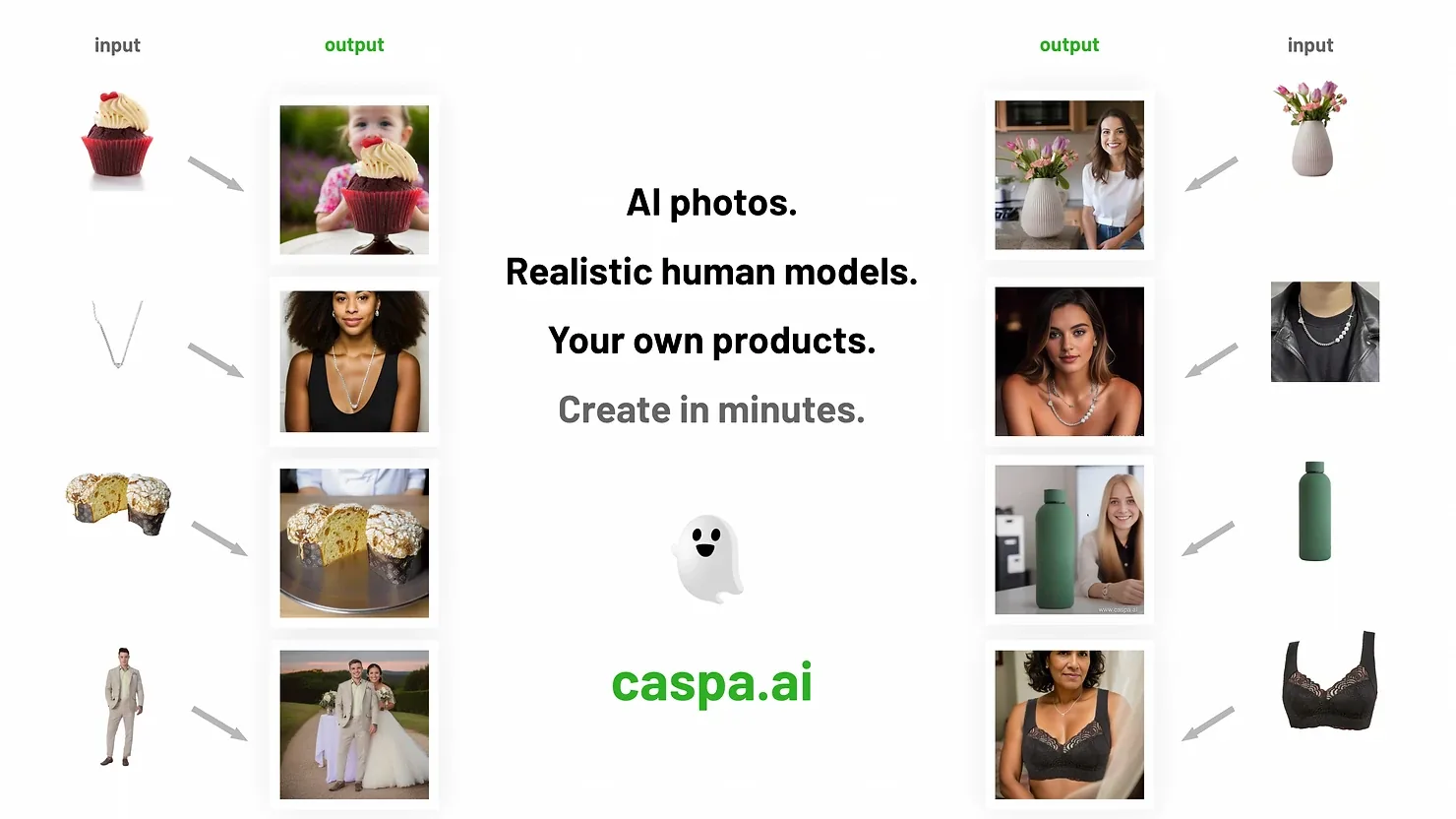
To use AI for product photography, you start with one plain photo of your product and let software build the picture around it: a marble bathroom shelf for a serum, a sunlit living room for a sofa, a model wearing your necklace. Done well, it gives a small store the range of images a big brand gets from a studio, in minutes instead of weeks. Done badly, it changes your product, and buyers notice when the parcel arrives.
This guide covers what AI is good at, a workflow you can run this afternoon, prompts that work, where it still falls short and what it costs. If you want to follow along, Caspa's AI product photography tool keeps your product unchanged and builds studio, lifestyle, flat lay and on-model scenes around it. Every new account gets 10 free credits, no credit card required.
Contents
- What AI product photography can and can't do
- 8 ways sellers use AI for product photos
- What to watch for in each product category
- How to use AI for product photography, step by step
- Prompts that work for product scenes
- Keeping a catalog consistent
- Pros and cons
- What it costs
- Which AI tool to use
- FAQ
What AI product photography can and can't do
"AI product photography" covers three different jobs, and mixing them up causes most bad results:
- Editing a real photo: background removal, cleanup of dust and stray objects, relighting, upscaling. The product is still your photo.
- Building a new scene around your real product: the tool keeps your product and generates the setting, props and shadows, or a model holding or wearing it. This is what most sellers need for listings and ads.
- Generating the whole image from text: general image generators such as Midjourney or ChatGPT invent a product that looks like yours. Fine for mood boards and concepts, not for anything a buyer will compare with the real item.
Within those jobs there are four common ways tools produce a product image. They differ most in how faithfully they keep your product:
| Approach | How it works | Best for | Watch out for |
|---|---|---|---|
| Text to image | You describe the product and the scene; the model draws both | Concepts, mood boards, campaign ideas | It cannot reproduce your exact product: shapes, logos and colors drift |
| Reference image | You upload your photo as a reference and ask for variations | Quick style and lighting variations | It can alter logos, colors, stitching and textures |
| Custom (fine-tuned) model | A model is trained on 10 to 20 photos of your product | Brand-consistent scenes at volume | Needs technical skill and computing time; fine details can still slip |
| Product kept, scene generated | The real product is cut out and a new background, props or model are generated around it | Listings, ads, social posts, marketplace images | Light and shadows have to suit the product; check the edges |
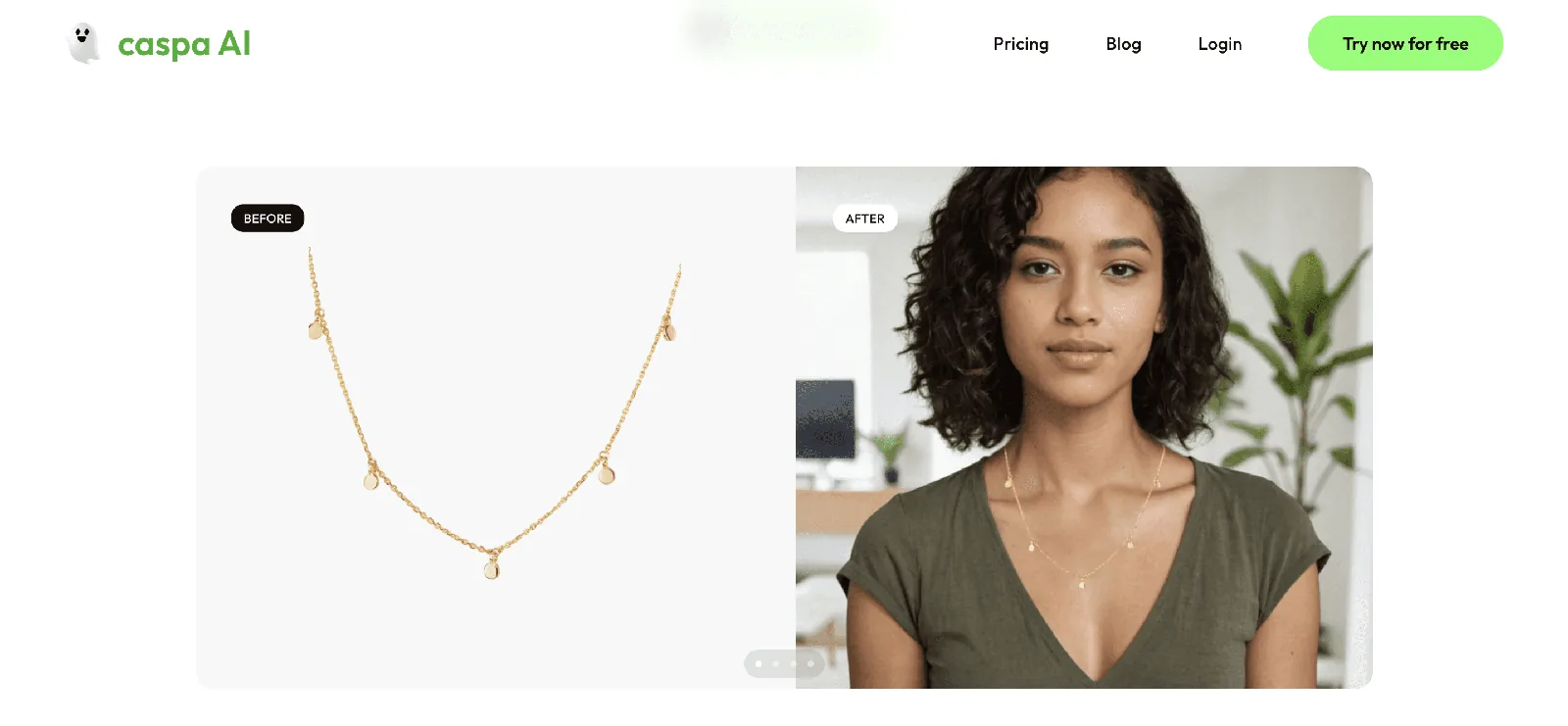
Caspa works the fourth way: it places your product into a new scene and leaves the product itself unchanged unless you choose to edit it. In the before and after below, the necklace on the model is the same necklace from the plain product shot.
8 ways sellers use AI for product photos
1. Marketplace and catalog images
Background removal gives you the clean main image most marketplaces expect, and an evenly lit, consistent set across your catalog. Each marketplace sets its own rules for main images, so check the current image requirements for Amazon, Etsy or Shopify before you upload. For dimensions, see the best size for ecommerce product images.
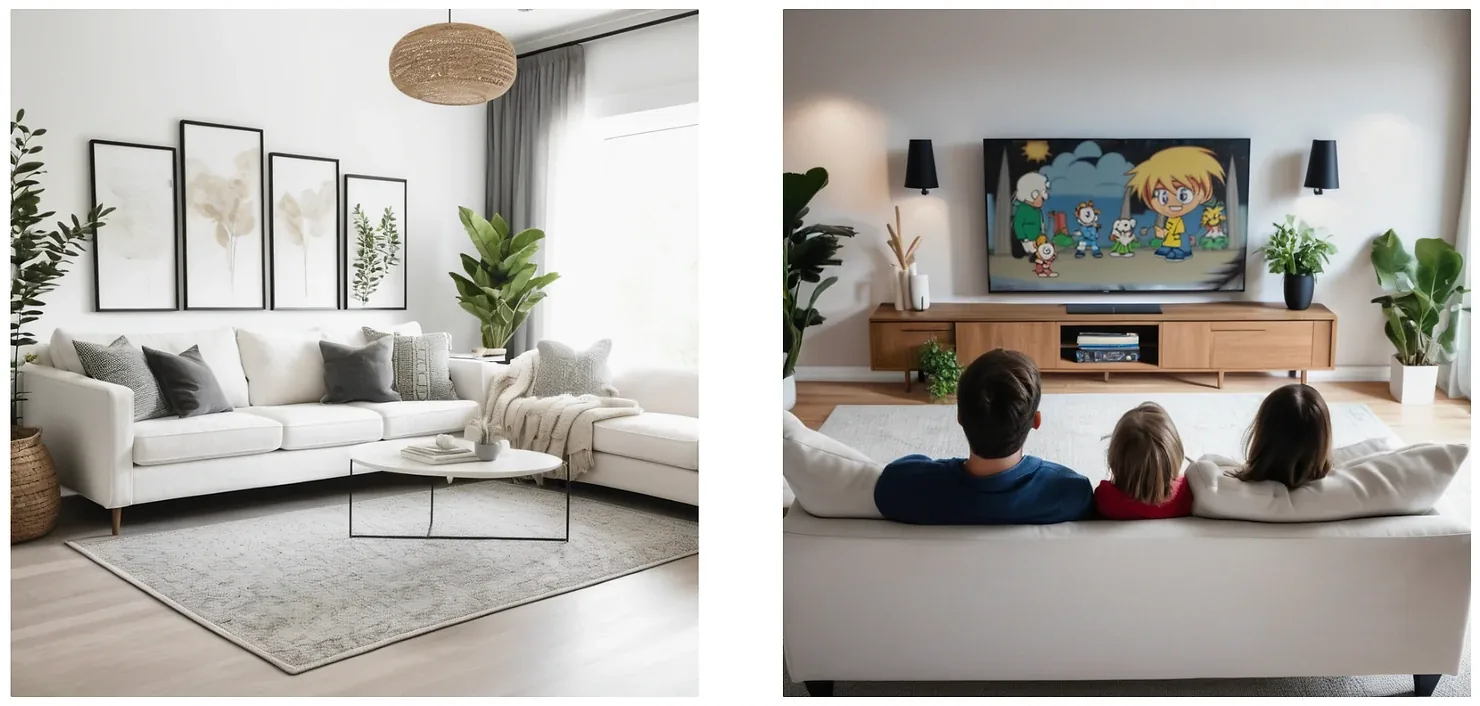
2. Lifestyle scenes
A lifestyle photo shows the product where it's used: a candle on a coffee table, a mug in a kitchen, a sofa in a bright living room. These are the shots that used to need a location, props and a stylist. With AI you pick or describe the setting and choose from several versions. Our lifestyle product photography page has more examples, and what is lifestyle product photography explains when to use it.
3. On-model photos
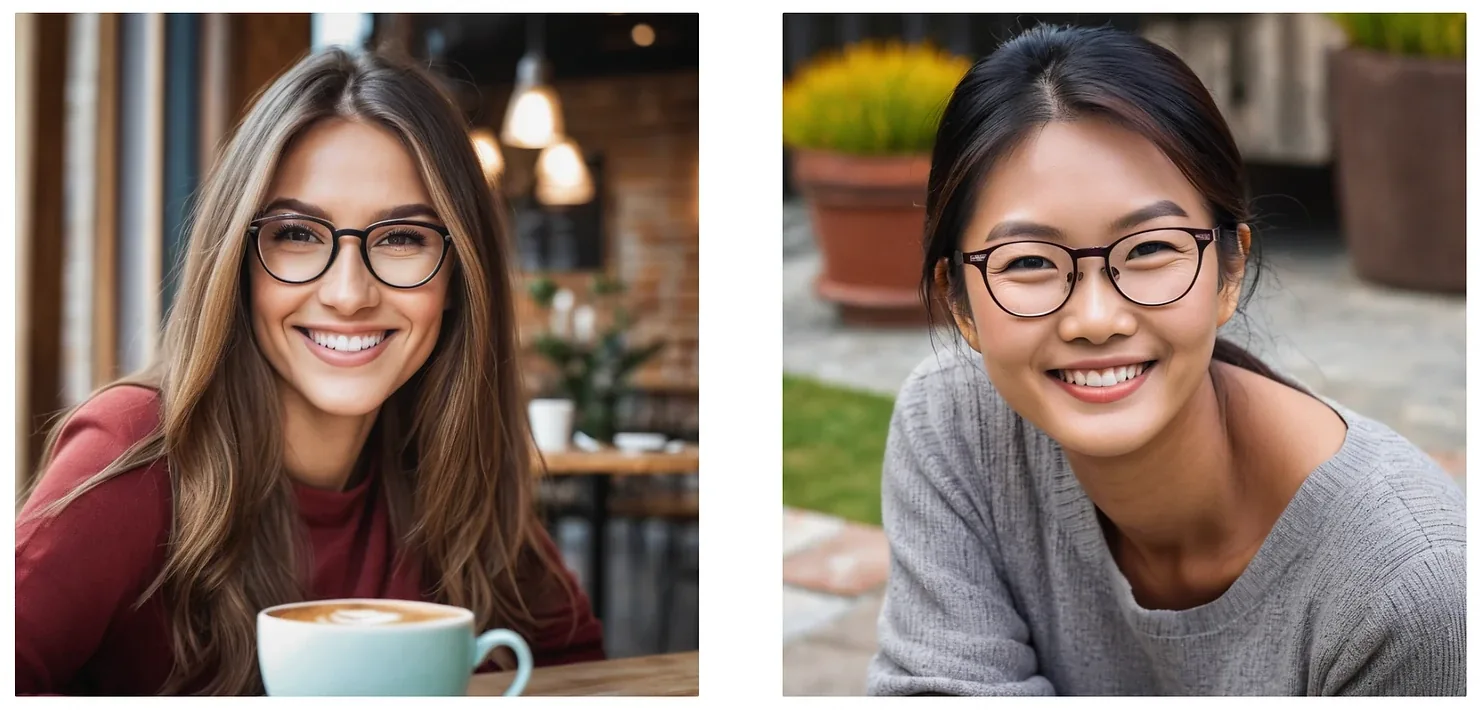
For clothing, jewelry, eyewear and accessories, buyers want to see the product on a person. AI models let you show it on different ages, body types and ethnicities without casting, and test which version your customers respond to. See AI fashion photography, jewelry photography and clothing photography for category examples.
4. Variants, sets and bundles
Shoot each color once, then generate the same scene for every variant so the listing looks like one shoot. You can also put several products in one image to show a set, a bundle or a "complete the look" pairing.
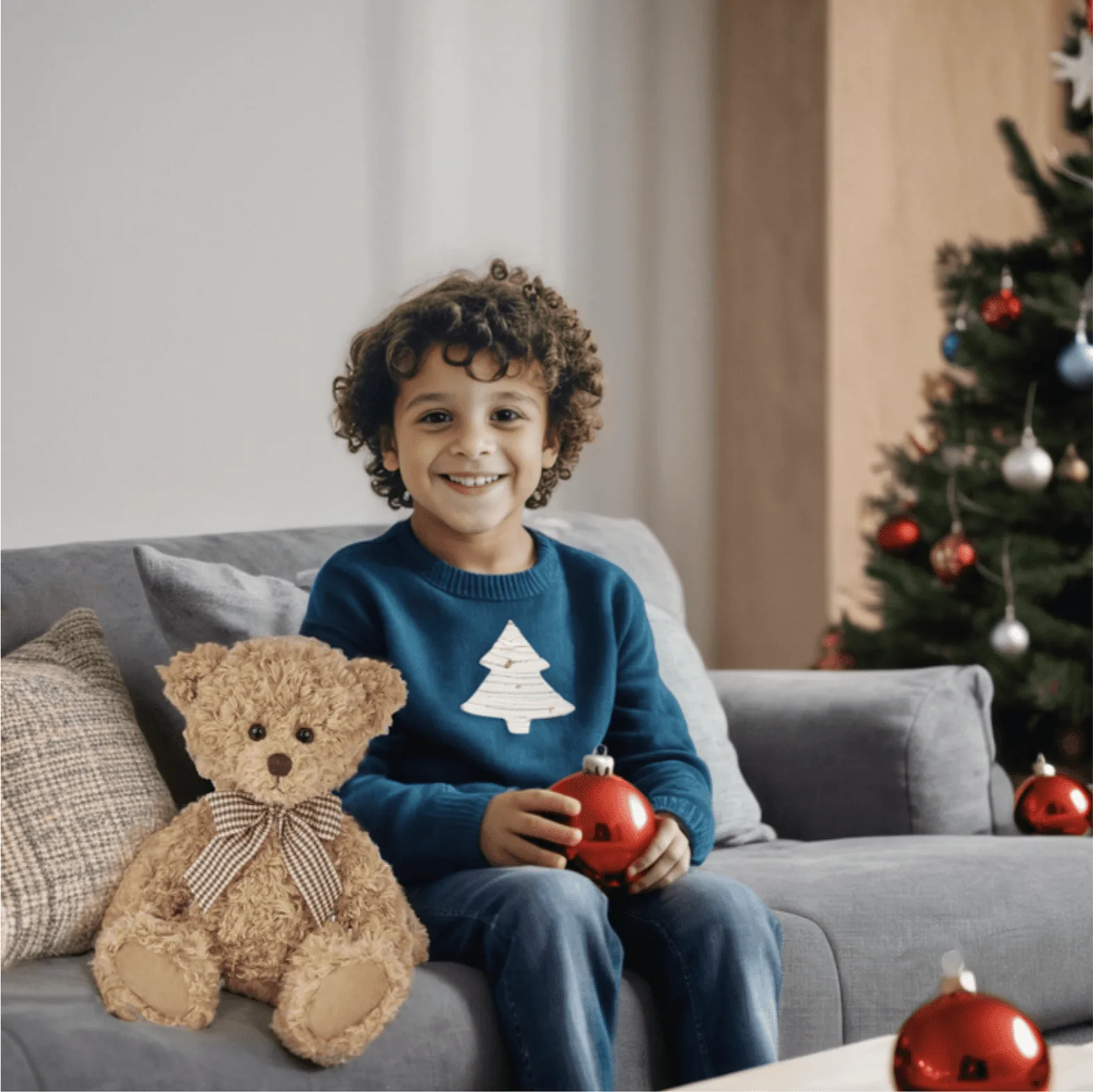
5. Seasonal and local campaigns
A holiday scene, a summer setting or a look that fits the region you sell into no longer needs a reshoot. Change the backdrop and props for the season or market, and keep the product exactly as it is.
6. Social posts, ads and email
Each channel crops differently: a vertical frame for Pinterest and Stories, a square or portrait frame for feeds, a wide banner for email. Generate in the shape the channel uses instead of cropping a square later. For ads, make three or four backgrounds for the same product and let the ad platform test them; that's the cheapest creative test you can run.
7. Fixing old photos
Supplier photos and old phone shots can often be rescued instead of reshot: remove the background, erase marks and stray objects, and upscale for sharper zoom (Caspa upscales up to 4K by 4K).
8. Product videos
The same source photo can become a short video for ads, TikTok or your product page. Caspa's AI product video tool turns a single product photo into a video; video is included on the Growth and Scale plans. For other options, see our guide to the best AI product video generators.
What to watch for in each product category
The workflow is the same for every product, but each category fails in its own way. What to check before you publish:
- Jewelry: start from a sharp close-up, then check chains, clasps, stones and reflections at full zoom. More in jewelry photography.
- Clothing and fashion: check prints, logos and how the garment drapes; pair on-model shots with a flat lay. See clothing photography and AI fashion photography.
- Beauty and skincare: textures and props (marble, botanicals, water) suit these products well, but never use AI to show results on skin. See beauty product photography and skincare product photos.
- Perfume and glass bottles: transparent glass and liquid are hard; inspect reflections and the label. See perfume product photography.
- Food and drink: packaged goods work well in kitchen and table scenes; keep portions and pack sizes honest. See food and beverage photography.
- Furniture and home: room scenes replace expensive sets, so check that the scale against the room is believable. See furniture product photography.
- Shoes, watches, bags and eyewear: logos, stitching, dials and lenses are the details buyers zoom in on. See shoe, watch, bag and eyewear photography.
- Candles, wine and coffee: mood sells these, so light and setting matter more than props. See candle, wine and spirits and coffee and tea photography.
How to use AI for product photography, step by step
Step 1: Take one clean source photo
The output is only as good as the input. You don't need a studio, but you do need:
- Soft, even light (a window on an overcast day works) and no harsh reflections across the product.
- A sharp photo with the whole product in frame and clear edges.
- True color: no beauty filters or heavy phone processing; check the photo against the real item.
- A separate photo for each color or variant, so the AI never has to guess.
For setups that cost next to nothing, see our DIY product photography setup and how to take the best product photos.
Step 2: Write a shot list for each channel
Decide what each listing needs before you generate anything. A typical set: a clean main image, two or three detail shots from your camera, one or two lifestyle scenes, an on-model shot if the product is worn, and versions shaped for social and ads. A shot list keeps the catalog consistent and stops you generating images you won't use.
Step 3: Pick the scene
In Caspa you upload the photo, then pick a scene, a model or a template, or describe what you want. If you write a prompt, describe the scene rather than the product: the tool already has the product. The prompt tips below help.
Step 4: Generate several versions and choose
Results vary from run to run, and the first one is rarely the best. Expect a couple of rounds: generate a few versions, keep the strongest, adjust the prompt or settings, and go again.
Step 5: Check every image before it goes live
- Is the product exactly as it ships: shape, color, logo, text, stitching, hardware?
- Does the scale make sense next to hands, furniture or a model?
- Do the light direction and shadows match between product and scene?
- Any AI tells: extra fingers, warped text in the background, objects melting into each other?
- Would a buyer feel misled when the parcel arrives?
Step 6: Edit, upscale and export
Fix small problems with an eraser or retouch tool, upscale if the channel needs more pixels, and export at the size each marketplace or platform asks for. Give files descriptive names and write real alt text in your store; both help image search. Our guide on how to edit product photos covers the finishing steps.
Step 7: Test and measure
Treat images like any other conversion lever. Swap a main image or an ad creative, give it a fair run, and compare click-through rate, add-to-cart rate, conversion rate and returns with the previous image. Keep what wins and reuse its scene for the next product.
Prompts that work for product scenes
When you do write a prompt, describe five things: the surface, the setting, the light, the mood and the camera angle. Short and specific beats long and vague. A few examples:
- Serum bottle: "white marble bathroom shelf, soft morning window light, eucalyptus sprig, shallow depth of field"
- Leather wallet: "dark walnut desk, warm lamp light, close-up, overhead angle"
- Scented candle: "living room coffee table in the evening, warm string lights blurred in the background"
- Running shoe: "wet city pavement at dusk, low angle, reflections on the ground"
And the habits that make the difference:
- One idea per prompt. If you want a beach scene and a kitchen scene, run two prompts.
- Name the light. "Soft window light", "golden hour" or "studio softbox" change the result more than adjectives like "beautiful".
- Say what you don't want where the tool supports it: no text, no extra products, no hands.
- Match props to the buyer, not to a trend: a hiking flask belongs on a trail, not in a marble lobby.
- Save prompts that work and reuse them across products. That's how a catalog stays consistent.
- Keep a reference board (Pinterest is fine) of light and composition you like, and describe what you see in it.
Keeping a catalog consistent
AI makes it easy to produce a lot of images, and just as easy to end up with a catalog that looks like ten different brands. Write a one-page style guide before you scale:
- Backgrounds: one or two scene types per collection.
- Light: direction and warmth, for example soft light from the left, neutral white.
- Palette and props: the colors and objects that fit your brand, and the ones you never use.
- Models: the age range and styling that match your customers.
- Framing: how much space around the product, and the crop for each channel.
Generate a whole collection in one session with the same settings and saved prompts, and the set will look like it came from one shoot.
Pros and cons of using AI for product photography
| Pros | Cons |
|---|---|
| Speed: scenes in minutes, with no booking, shipping samples or retouching queue | Detail drift: tools that redraw the product can change logos, text and textures |
| Cost per image: a subscription instead of a fee for every shoot | Hard materials: very reflective, transparent or finely detailed products still trip AI up |
| Range: settings, seasons, models and props you couldn't afford to shoot | AI artifacts: hands, small text and physics still go wrong sometimes, so every image needs a human check |
| Testing: enough variants to test main images and ads properly | No real results: an AI face can't show what mascara or a serum actually does |
| Consistency: the same settings across a whole catalog | Rules and rights: marketplaces set image rules, and purely AI-generated parts of an image may not be protected by copyright |
For a full side-by-side with hiring a photographer, read AI vs traditional product photography.
What AI product photography costs
Most AI tools are subscriptions priced by credits or images. These are Caspa's plans, from our pricing page:
| Plan | Monthly | Billed yearly | Credits | What you get |
|---|---|---|---|---|
| Starter | $59/month | $39/month | 500 | Images only (no video), upscaling up to 4K, infographics, A+ content, AI editing, commercial use license |
| Growth | $99/month | $66/month | 1,000 | Everything in Starter, plus image and video generation and priority support |
| Scale | $249/month | $166/month | 2,500 | Everything in Growth, plus up to 3 users, API access and custom integrations |
Every new account gets 10 free credits with no credit card required, and paid plans come with a 30-day money-back guarantee. A photographer usually charges per image or per day, plus models, styling, studio time and retouching; our product photography pricing guide breaks those costs down. The fair comparison isn't the price of one image. It's the cost of every image you'll need this year, including reshoots, new colors and seasonal updates.
Which AI tool should you use?
- Listings, ads and social posts that show your real product: use a tool built for products that keeps the product unchanged, such as Caspa. Our list of the best AI product image generators covers the main options, and our comparisons put Caspa side by side with Photoroom, Pebblely, Claid, Pixelcut and Soona.
- Concepts, mood boards and campaign ideas: a general image generator such as Midjourney or ChatGPT is fine, because nobody will compare the picture with the real product.
- Perfecting one hero shot: a photo editor with AI features gives you the most manual control.
For the rest of your stack (product copy, ads, support and analytics), see our list of AI tools for ecommerce, and for a closer look at AI shoots, what an AI photoshoot is.
Can you use AI product photos commercially?
Usually yes, if the tool's license allows commercial use; Caspa plans include a commercial use license. Two things still matter: the image has to show your product honestly, and in the US purely AI-generated material isn't protected by copyright. Our guide to using AI images commercially covers licensing, ownership and marketplace rules.
Frequently asked questions
Can AI make product photos from a phone picture?
Yes. A sharp phone photo taken in soft, even light is enough for most products. The cleaner the source photo, the better the result, so avoid harsh shadows, strong reflections and filters.
Will AI change how my product looks?
It depends on the tool. Tools that generate the whole image, or redraw your product from a reference photo, can change logos, colors and details. Caspa places your product into a new scene and leaves the product unchanged unless you choose to edit it.
Is AI product photography good enough for Amazon?
For lifestyle and other secondary images, yes, as long as they show the product accurately. The main image has stricter rules, including a pure white background, so check the current Amazon image requirements before you upload.
Which products are hardest to photograph with AI?
Very reflective items such as polished metal and glass, transparent products, products covered in fine text or tiny details, and anything where the exact fit on a body matters. Check those images closely and consider a real photo for the main shot.
How much does AI product photography cost?
Most tools charge a monthly subscription. Caspa starts at $39 a month billed yearly ($59 billed monthly) for 500 credits, and every new account gets 10 free credits with no credit card required.
Do I need to write prompts?
No. In Caspa you upload a product photo and pick a scene, model or template. Prompts help when you want a specific setting, light or mood.
Can I use AI product photos commercially?
Usually yes, if the tool's license allows it, and Caspa plans include a commercial use license. Purely AI-generated material isn't protected by copyright in the US, so read our guide to using AI images commercially before you rely on exclusivity.
Can AI make product videos too?
Yes. Caspa turns a single product photo into a short product video. Video is included on the Growth and Scale plans.
Start with one product
Pick your best seller, take one clean photo and make three scenes: a lifestyle shot, an on-model or in-hand shot and a seasonal version. Put the best one on the listing and compare it with the old image over a few weeks. Your first 10 credits are free, no credit card required.